

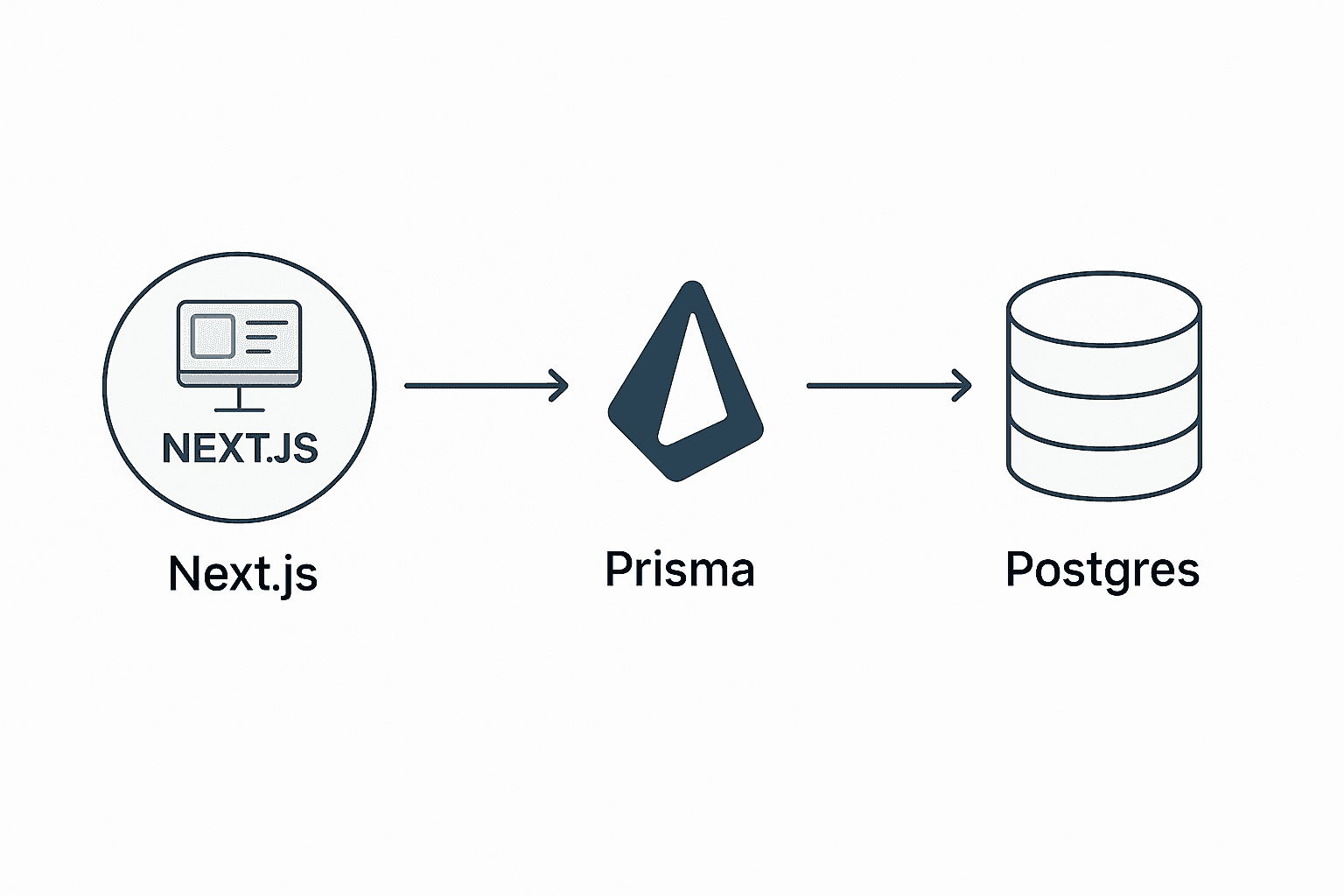
Setting up a reliable database layer is one of the most important steps when building a modern web application. This guide focuses specifically on database and ORM setup in a Next.js project, using Prisma, PostgreSQL, and a Dockerized local environment.
The goal is to give you a clean, production-ready foundation for data persistence—without mixing in unrelated concerns.
For other core features such as authentication, emails, and payments, it’s best to rely on the official documentation of the tools themselves. In my own projects, I typically use:
- Auth.js, Better Auth, or Clerk for authentication
- Resend for email delivery
- Stripe for payments
All of these integrate smoothly with Next.js and are well documented, so this article intentionally focuses only on Prisma + PostgreSQL setup.
Prerequisites
Before starting, make sure you have the following installed:
- Node.js (v16 or newer)
- Docker
Step 1: Initialize a Next.js Project
Start by creating a new Next.js application:
npx create-next-app@latest my-app
cd my-app
Important Note
The latest Next.js version (15.0.3) uses React 19. Since many UI libraries and npm packages do not yet fully support React 19, it’s recommended to use a stable version instead:
npx create-next-app@14.2.18 my-appThis avoids unnecessary compatibility issues early in development.
Step 2: Install Prisma Dependencies
Next, install Prisma and the Prisma Client:
npm install prisma --save-dev
npm install @prisma/client
Prisma will act as your ORM, while @prisma/client is the generated database client used in your application code.
Step 3: Initialize Prisma
Initialize Prisma inside your project:
npx prisma initThis creates:
- A
prisma/directory withschema.prisma - A
.envfile in the project root
These will be the foundation of your database configuration.
Step 4: Configure PostgreSQL with Docker
Running PostgreSQL locally via Docker keeps your environment isolated and consistent across machines.
Start by initializing Docker in your project:
docker initThis generates a Dockerfile and a compose.yml file.
Configure PostgreSQL in compose.yml
Add the following service definition:
services:
  db:
    image: postgres:15-alpine
    environment:
      POSTGRES_PASSWORD: admin
    ports:
      - "5432:5432"
Configure the Database Connection
Update your .env file:
DATABASE_URL="postgresql://postgres:admin@localhost:5432/db-dev"Notepostgresis the default PostgreSQL user. You can change it if needed—just make sure the username and password match your Docker configuration.
Start the database container:
docker compose upYou now have a running PostgreSQL instance.
Step 5: Using Prisma in a Next.js Project
To avoid creating multiple Prisma instances during development, create a singleton client.
Inside a lib folder, add db.ts:
import { PrismaClient } from "@prisma/client";

const prismaClientSingleton = () => {
  return new PrismaClient();
};

declare const globalThis: {
  prismaGlobal: ReturnType<typeof prismaClientSingleton>;
} & typeof global;

const prisma = globalThis.prismaGlobal ?? prismaClientSingleton();

export default prisma;

if (process.env.NODE_ENV !== "production") {
  globalThis.prismaGlobal = prisma;
}
This pattern prevents exhausting database connections during hot reloads in development.
Step 6: Define a Database Schema
Open prisma/schema.prisma and define your data models.
Example schema:
generator client {
  provider = "prisma-client-js"
}

datasource db {
  provider = "postgresql"
  url      = env("DATABASE_URL")
}

model User {
  id    Int    @id @default(autoincrement())
  email String @unique
  name  String
}
Apply the schema and generate the Prisma client:
npx prisma db push
npx prisma generateImportantdb pushis fast and ideal for prototyping, but it does not create migrations.
For production workflows, use:
npx prisma migrate dev(development)npx prisma migrate deploy(production)
Step 7: Verify Data with Prisma Studio
Prisma Studio provides a visual interface to inspect and edit your database:
npx prisma studioTip
Add--browser noneif you don’t want Prisma Studio to open automatically.
Summary
You now have a Next.js project with:
- A Dockerized PostgreSQL database
- Prisma as your ORM
- A clean, scalable database setup ready for development
Daily Development Commands
npm run dev
docker compose up
npx prisma studio
When the Schema Changes
npx prisma db push
npx prisma generate
Next Steps: Deploying to Production
Once everything works locally, it’s time to prepare for deployment.
Hosting PostgreSQL on Neon (Recommended)
Neon is a serverless PostgreSQL platform that works extremely well with Prisma and offers a generous free tier.
Steps to Set Up Neon
- Go to https://neon.tech and create an account
- Create a new project and database
- Copy the connection string, which looks like this:
postgresql://username:password@your-project.neon.tech/dbname?sslmode=require
Update your .env file:
DATABASE_URL="postgresql://username:password@your-project.neon.tech/dbname?sslmode=require"Important
Prisma requires SSL when connecting to Neon.sslmode=requireis mandatory.
Push your schema to Neon:
npx prisma db push
npx prisma generate
Preparing for Deployment
Choose a Hosting Provider
- Vercel is the best choice for Next.js applications and handles environment variables cleanly.
Configure Environment Variables
- Add your Neon
DATABASE_URLin your hosting provider’s dashboard.
Use Prisma Migrations in Production
Generate migrations:
npx prisma migrate dev --name initDeploy migrations:
npx prisma migrate deployThis ensures your database schema is versioned and applied safely.
Optional: Environment-Specific .env Files
You can use:
.env.local.env.production.env.staging
to keep configuration clean across environments.
You’re Production-Ready
With Neon and Vercel, your stack now includes:
- Next.js (frontend + backend)
- Prisma (ORM)
- PostgreSQL (Neon)
- Docker (local development)
- Vercel (deployment)
This setup scales well, follows modern best practices, and is suitable for real-world production applications.